
This quick guide will show you how to use FuseTwo’s Message Center to create and send direct messages to your publishers.
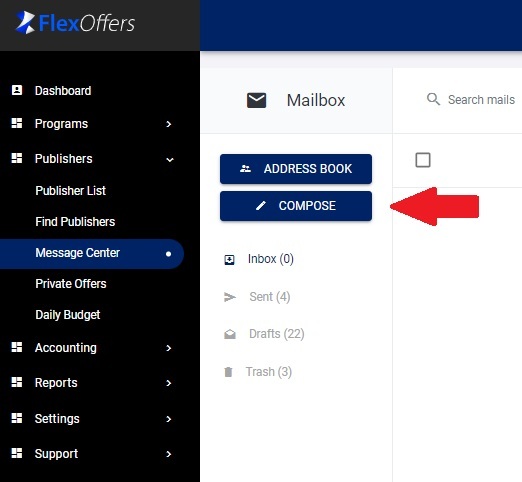
- From your Dashboard, go to Publishers > Message Center.
- Click the Compose button.

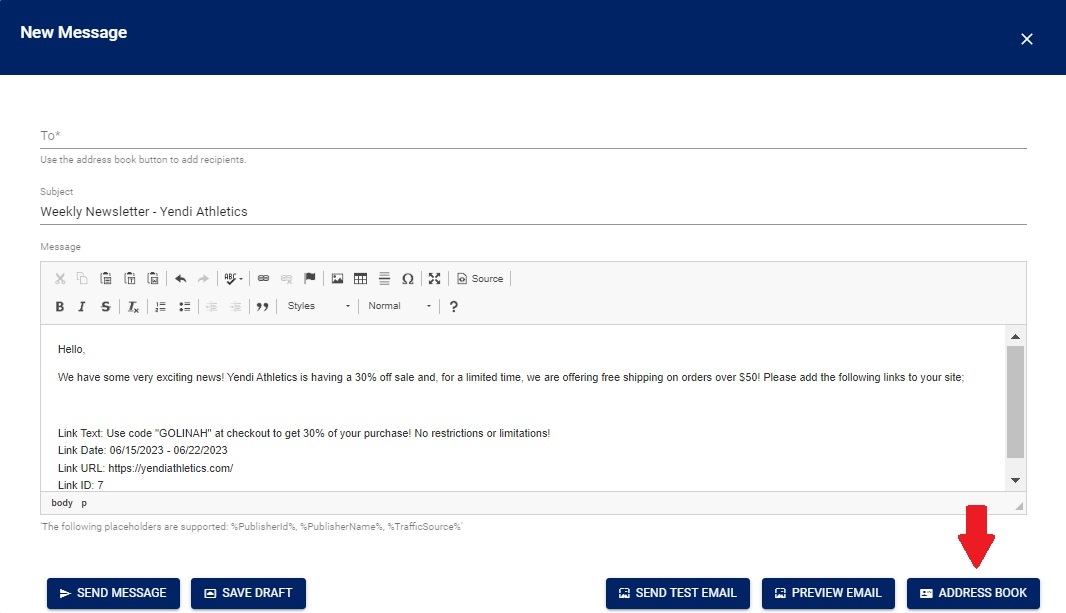
- A New Message window will open. You can now compose your message.
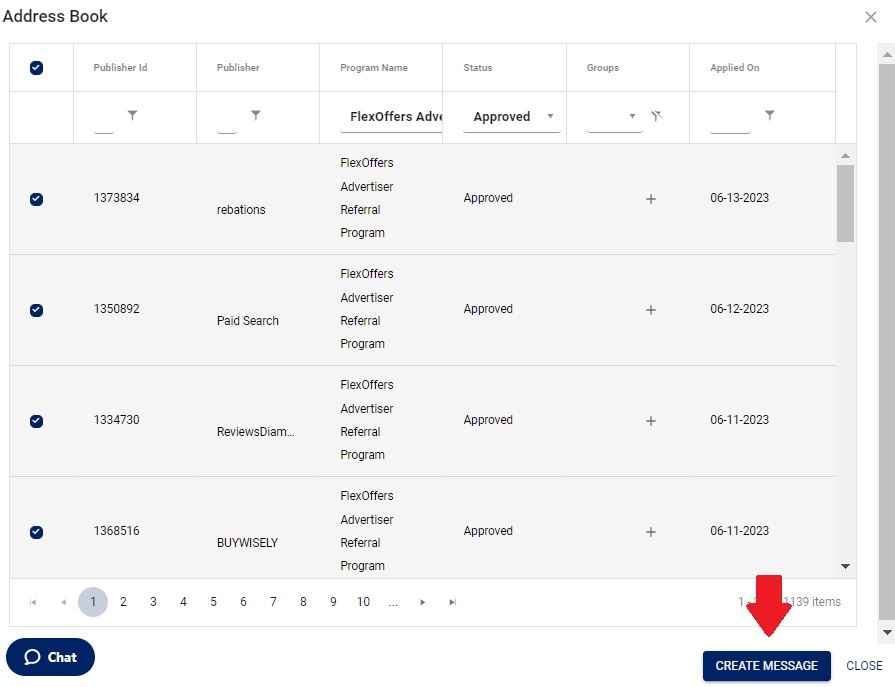
- Once your message is composed, click the Address Book button and select the recipients of your message.
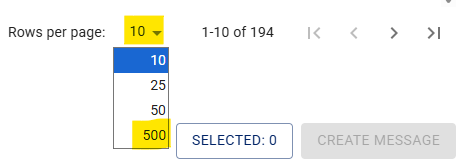
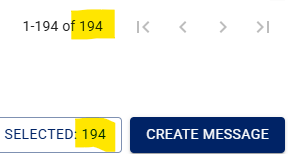
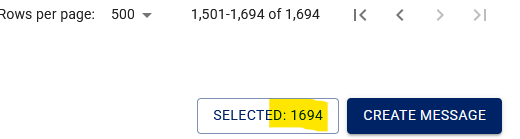
- By clicking the “Rows per page” dropdown menu at the bottom-right of the page, you can display up to 500 approved publishers per page.
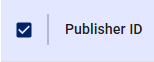
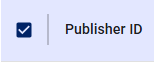
- Select the checkbox next to the publishers you want to send your message to, or click the checkbox at the top to select all publishers on the page.
- Notice the selected number and compare it to the number of total approved publishers shown above it.
- When there are more than 500 approved publishers, after selecting the first list of 500, you can advance to the next page of the list by clicking the > icon.
- And again, click the checkbox at the top-left to select all publishers on the page.
- Repeat these steps to select all the desired recipients.
- Once you are finished selecting the recipients, click the “CREATE MESSAGE” button.
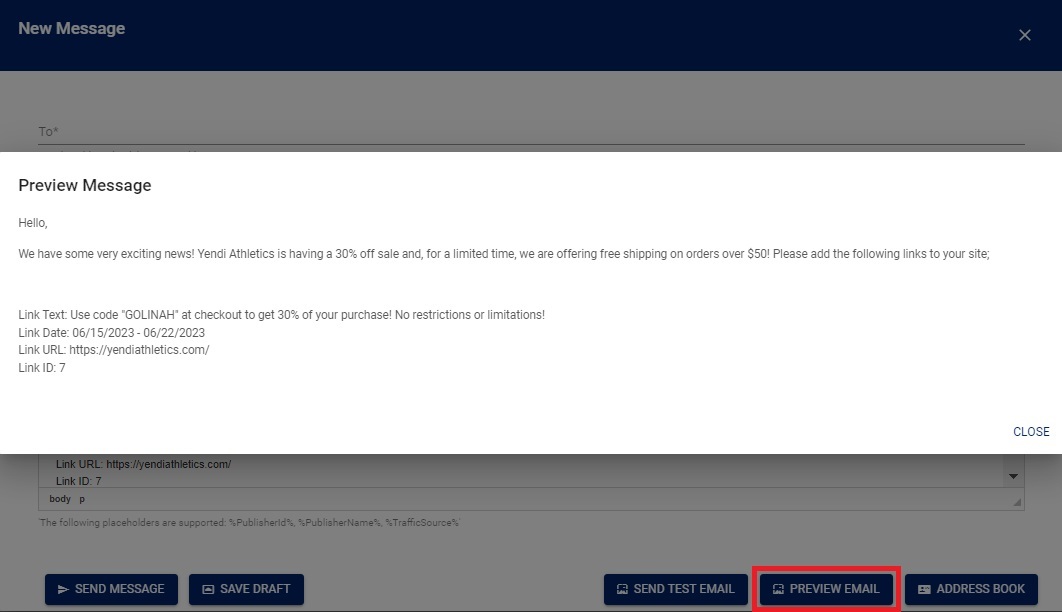
- You can preview your message by clicking the Preview link.
- Make any desired changes and click the Send Message button once you are ready to send. If you are not ready to send the message, you can save the message as a draft.

Monitoring the Message Center
After your messages are sent, you will be able to view them in the Sent folder of the Message Center.
Remember to check your Inbox in the Message Center at least twice per week. Publishers utilize the Message Center to communicate with you about your brand, your product, and the ways they will be promoting you. Publishers may also negotiate commission rates or ask for exclusive offers through the Message Center, and it is important to answer all publisher communications in a timely manner.
We have found that consistent messaging does result in incremental growth of link placements and clicks with a few key elements added to get their attention and conveniently providing their specific tracking link(s).
Tips:
- <p> tags result in double-spacing. Use table rows and <br> (shift+enter) to control spacing better.
- Providing a person’s name and email address in the signature as the program manager/contact makes the message more personable and greatly improves the chance they will contact you.
- The publisher’s link in the email will remain the same, and only the highlighted portions in the following example need to be changed to the correct program# and creative# from the advertiser interface.
Example:
https://tracklink.example.com/g.ashx?foid=156464.<program#>.<creative#>&trid=%PublisherId%.<program#>&foc=16&fot=9999&fos=6