
With Google Tag Manager, you can easily set up conversion tracking for your FuseTwo campaigns. This article explains how to do it.
Note: To use this implementation, Google Tag Manager should already be installed on your website. Google Tag Manager is a third-party platform, and FuseTwo cannot be held responsible for its use.
Import the FuseTwo Google Tag Manager Container
1. In your Advertiser account, go to Settings > Conversion Tracking.

2. Click on Ecommerce Plugins and then click Google Tag Manager.

3. Select your program and click Next.

4. Click “Download here” to download the Google Tag Manager container file, then click the “x” to close the pop-up window.

5. In your Google Tag Manager account, go to Admin > Import Container.

6. Click the Choose Container File button and select the FuseTwo GTM Container file you downloaded.
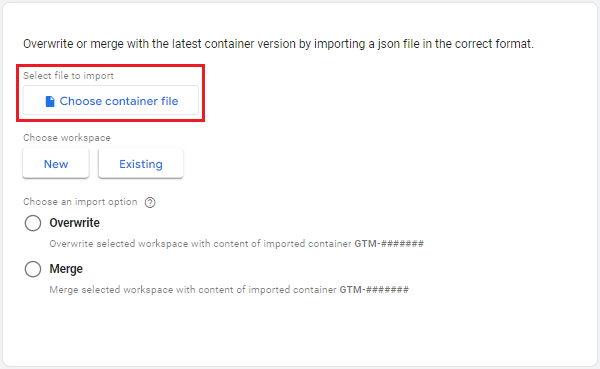
7. Choose your workspace and import options, and click the Confirm button. Note: Selecting the ‘Overwrite’ option may erase existing data in Google Tag Manager.

Learn more about importing Google Tag Manager containers.
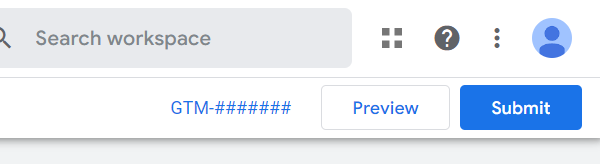
8. At the top of your Google Tag Manager dashboard, click Submit and follow the prompts to publish your changes.
Learn more about publishing changes in Google Tag Manager.
Create a Test Transaction
In your Advertiser account, go to Settings > Tracking Diagnosis and follow the instructions to create a test transaction.
Note: Be sure to leave the Tracking Diagnosis page open while you create the test transaction and go back to that page to confirm that the test was successful.