
Activity Level Grouping
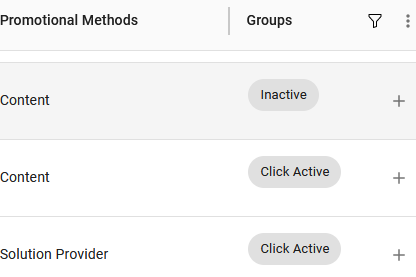
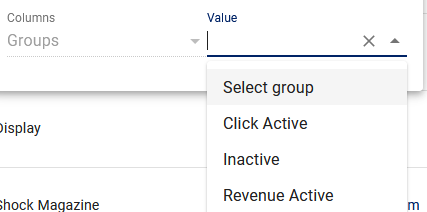
FuseTwo released an exclusive feature to automatically help you organize your affiliate publishers by activity and identify who is actively promoting and who is referring paying customers. You may also filter the pre-defined groups to see publishers sending clicks with no sales or no clicks (Inactive). You can use the Groups column filter on the Publisher List page and Message Center Address Book to view the “Groups” column which will display an “Inactive” tag for any publisher not sending at least one click referral within the last 30 days. If a publisher is referring clicks without a sale converting, it will display “Click Active“, and publishers who have referred sales in the last 30 days will show as “Revenue Active” or display a “View Groups 1+” button.

(Note: Auto-grouping of recently approved publishers occurs at the beginning of the following week.)
Click the funnel icon  to filter the publishers.
Creating and Managing Publisher Groups
Creating publisher groups makes it easier to manage and optimize managing your affiliate programs. You can create custom publisher groups based on an any criteria you want to sort your partners by. The most common category used is based on the promotional methods of the publisher (such as Coupon, Content, Media Buyer, etc).
The two main advantages of creating and maintaining your publisher groups are the ability to send messages by selecting the group and creating and assigning private offers by group. Once you create these groups, all you need to do is select the respective group in the dropdown menu where available.
Click Manage Groups below the Publisher List:

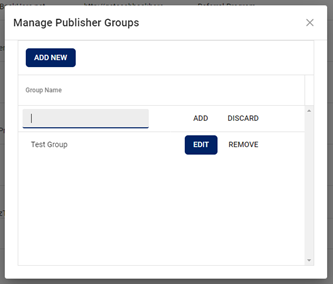
To add a new group, click ADD NEW, enter the group name, and then click ADD. You can also edit and remove groups:
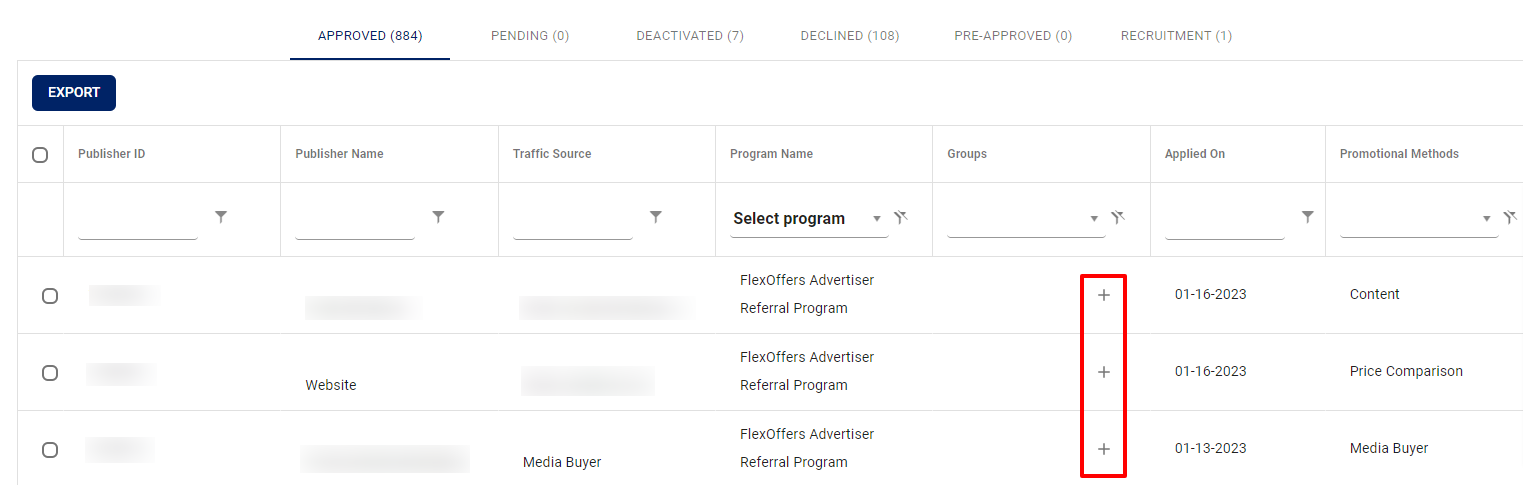
To add a publisher to a group, click the + symbol, and a pop-up will be displayed:
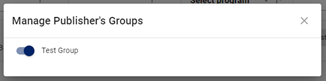
Slide the toggle to add a publisher to the group (you can add a publisher to multiple groups):
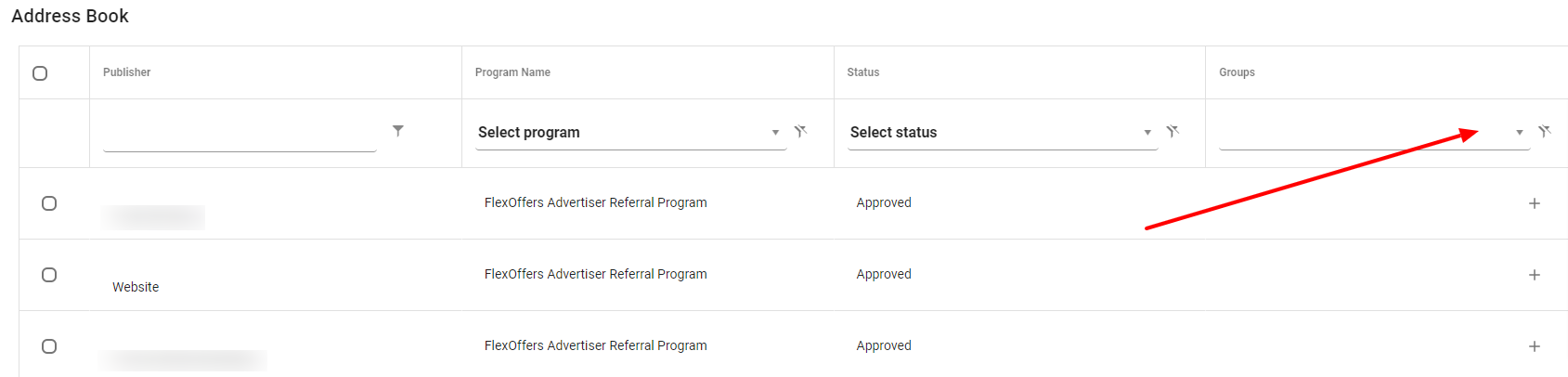
Navigating to groups in the Message Center (Address Book):
When sending a message, you can filter to select the group you want to message by using the dropdown menu.
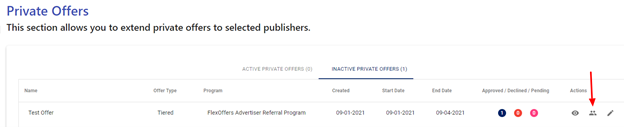
To select a specific Publisher Group, click the User icon in Actions column:
It will expand the publisher list, and you will be able to select a Publisher Group from the dropdown menu at the top of the Groups column:
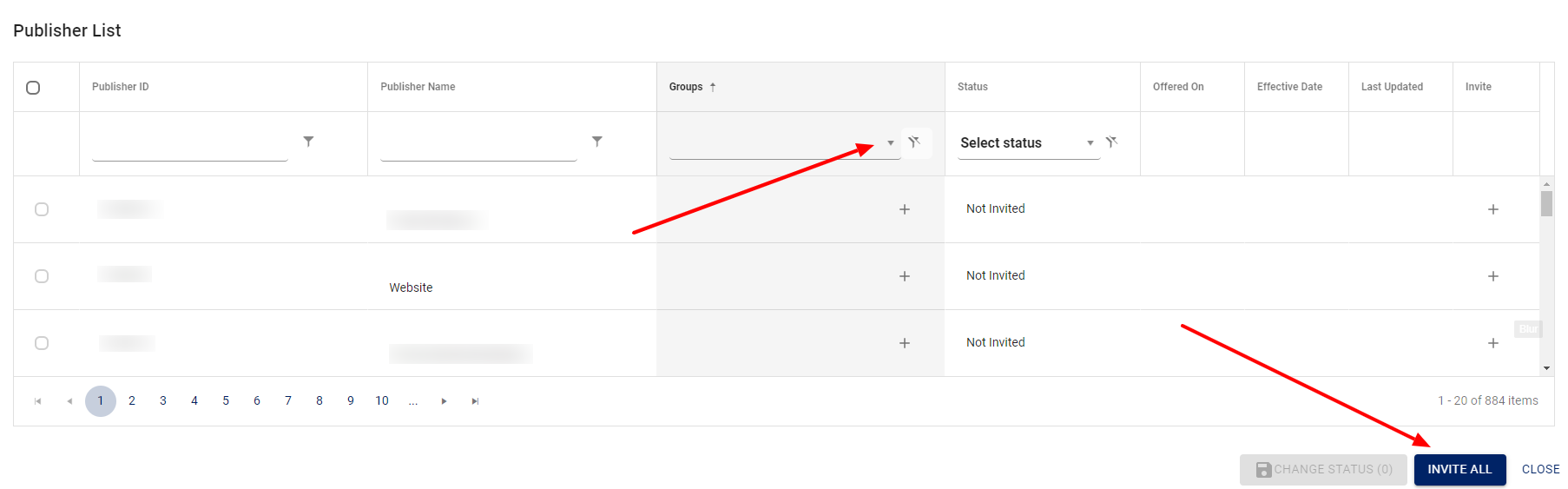
After you select the group from the dropdown menu, click the Invite All button, and that specific Private Offer will be sent to each of the publishers in that group.
FAQ
Will publishers see who else is in a group with them?
- No, the groups and group names are only visible to the advertiser.
Can I add a publisher to more than one group?
- Yes! You can add a publisher to as many groups as you want.
How do I assign a specific commission rate to a publisher group?
- This would be done on the Private Offers page of your account. Please review the steps in that section for how to do this.
Is there a way to make a specific link/promotion only available to one group?
- The ability to assign specific offers to a Publisher Group is not supported at this time. If you need further assistance, please email [email protected].